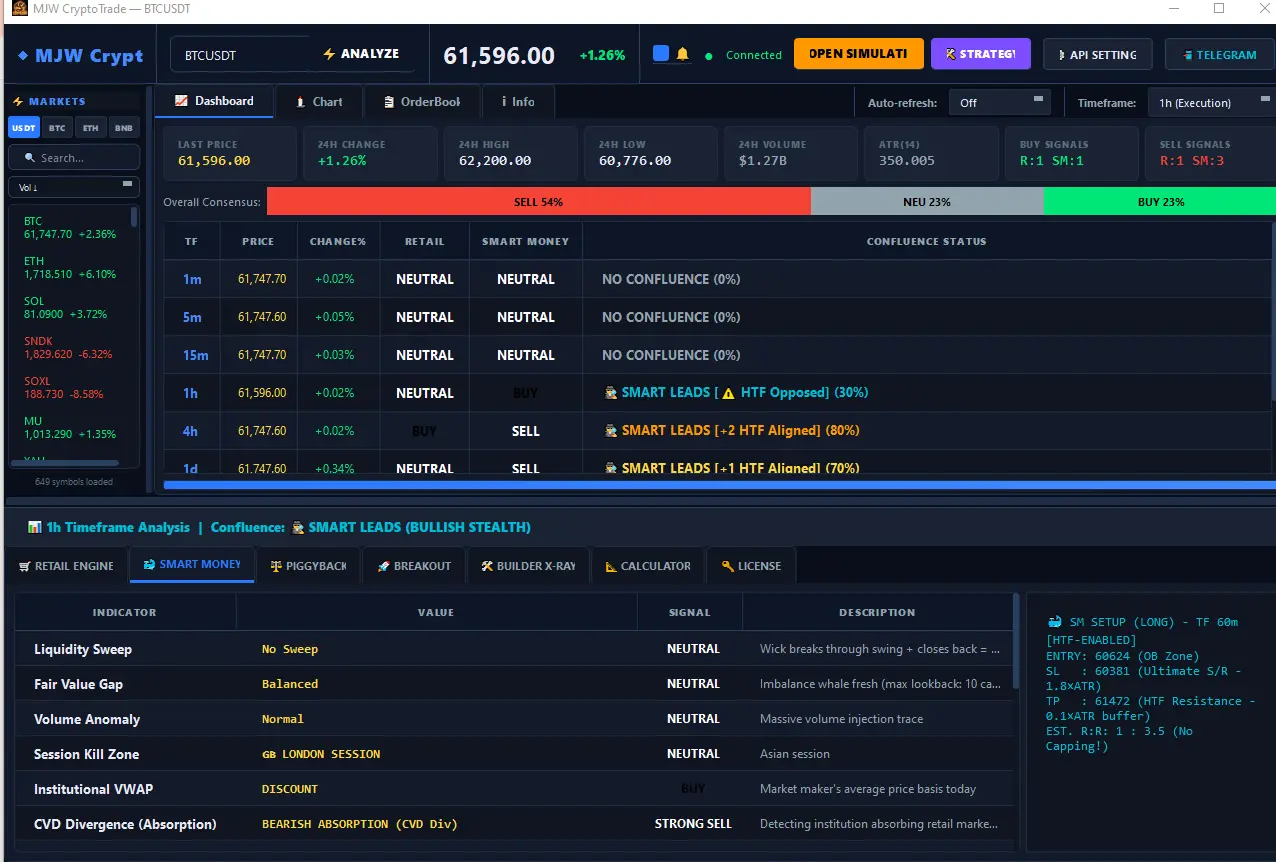
MJW CryptoTrader Pro is a systematic trading automation system built around disciplined risk management, transparent performance reporting, and hardware-locked security — not marketing promises.
Every element of this system is designed with one goal: to give you reliable, verifiable, and secure automated trading.
📈
Data Transparency
All performance metrics — including losses and drawdowns — are publicly reported. We do not cherry-pick results or hide underperformance.
🛡️
Risk Management
Built-in stop-loss, position sizing, and drawdown circuit breakers. The system is designed to protect capital before chasing profit.
🔐
HWID-Locked License
Every license is bound to your hardware ID. This prevents unauthorized sharing and ensures your access is exclusive and secure.
⚙️
No Manual Activation
Once configured, the system runs autonomously. No manual intervention required during live sessions — reducing human error entirely.
Performance
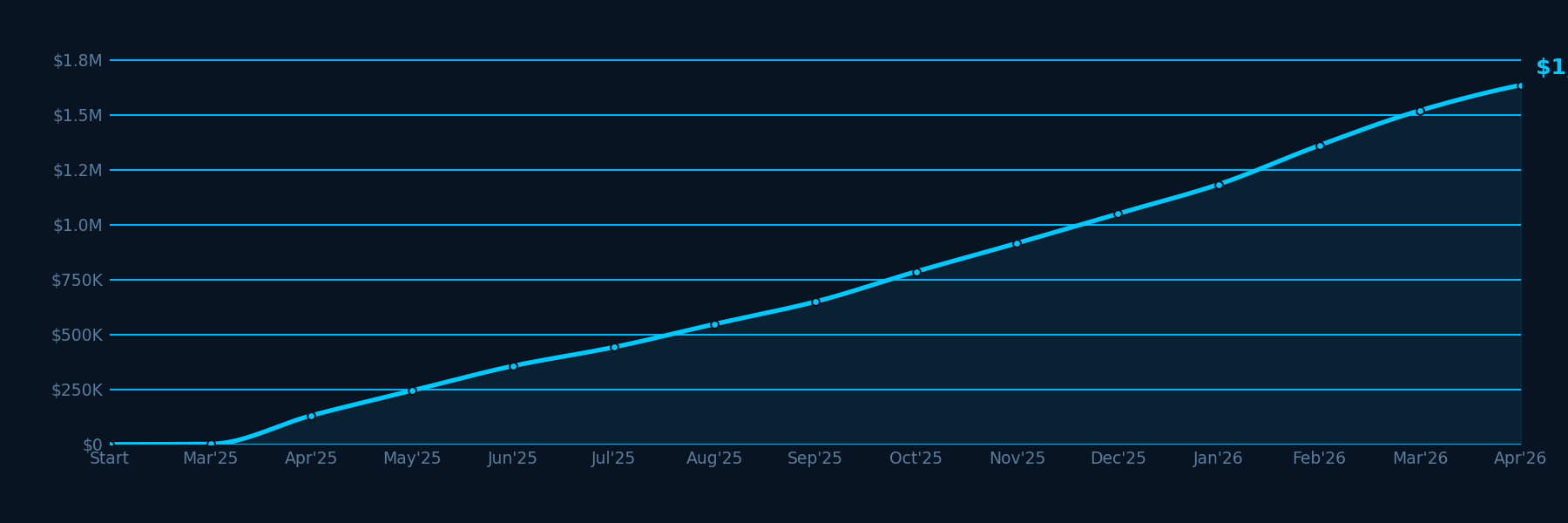
System Performance Overview
Historical backtest results across 13 months of market data (Mar 2025 - Apr 2026) using the Smart Money strategy on BTC/USDT 15m. Past performance does not guarantee future results.
Human emotions — fear, greed, hesitation — are the leading causes of trading losses. The system executes based purely on pre-defined rules and data signals, every single time.
📊
Data-Driven Entries & Exits
Every trade entry, take-profit, and stop-loss level is determined by quantitative signals — not intuition. The strategy has been rigorously tested across market conditions.
⚖️
Built-In Risk Control
Position sizing, daily loss limits, and drawdown circuit breakers are integrated at the core of the system. Capital preservation is the first priority, profit is the second.
🔍
Transparent Reporting
We publish real backtest data including losing months and maximum drawdowns. You should understand the full risk profile of any system you use — and we make that easy.
Get Started
Ready to Trade Systematically?
Join traders who have moved from guessing to executing. Review our performance data, choose a plan, and start your first automated session.
⚠️ Past performance does not guarantee future results. Trading carries risk.
Knowledge Base
Trading Insights & Guides
Educational articles on automated trading, risk management, and algorithmic strategies. Written for traders at every level.
← Back to Blog
Getting Started
Installation Guide
This guide will walk you through installing MJW CryptoTrader Pro on your Windows machine. The process takes approximately 5–10 minutes.
ℹ️ System Requirements: Windows 10/11 (64-bit) · 4GB RAM minimum · Stable internet connection · .NET Runtime 6.0+
Step 1: Download the Installer
1
Log into your dashboard at mjwcryptotrade.com/login and navigate to the Downloads section. Download the latest installer (MJWCryptoTrade_Setup_vX.X.exe).
Step 2: Run the Installer
2
Right-click the downloaded file and select Run as Administrator. Follow the on-screen installation wizard. Choose your installation directory (default recommended).
The installer will automatically check for and install required dependencies including .NET Runtime 6.0. If prompted, allow the dependency installation to complete before proceeding.
Step 4: Launch the Application
4
Find MJW CryptoTrader Pro in your Start Menu or desktop shortcut. Launch it to see the activation screen. You will need your license key to continue.
⚠️ Antivirus Note: Some antivirus software may flag the installer. This is a false positive due to the software's network communication features. Add an exception for the installation folder if needed.
License
License Activation
Your license key is bound to your Hardware ID (HWID). This section explains how to find your HWID, purchase a license, and activate the software.
What is HWID?
HWID (Hardware ID) is a unique identifier generated from your computer's hardware components — including CPU, motherboard, and storage. It serves as a digital fingerprint for your machine. Each license can only be used on the machine whose HWID was submitted at purchase.
Finding Your HWID
1
Launch MJW CryptoTrader Pro. On the activation screen, your HWID is displayed automatically. It will look like a string of alphanumeric characters.
Example HWID format:
A1B2C3D4E5F6A1B2C3D4E5F6A1B2C3D4
Purchasing & Activating
2
Go to Pricing and choose your plan. During checkout, paste your HWID. After payment is confirmed, your license key will be issued to your registered email and dashboard.
3
Copy your license key from the dashboard. Return to the application activation screen, paste the key in the License Key field, and click Activate.
ℹ️ HWID Reset: If you replace your machine, contact support via Telegram (@mjwCryptoTrade_support) to request a HWID reset. Each license allows one reset per billing period.
Setup
System Configuration
After activation, configure the bot's trading behavior through the Settings panel. Key configuration areas are explained below.
General Settings
Trading Pair: Select your primary trading pair (e.g., BTC/USDT, ETH/USDT)
Timeframe: Choose the chart interval (1H recommended for beginners)
Trade Mode: Futures Only
Strategy Settings
Strategy Module: Select your activated strategy (Basic, Advanced, or Multi-Pair)
Entry Sensitivity: Adjust how aggressively the bot enters positions
Signal Confirmation: Enable double-confirmation for higher precision at the cost of fewer trades
⚠️ We strongly recommend starting with the default settings and a small position size before adjusting any parameters.
Integration
Exchange API Setup
MJW CryptoTrader Pro connects to your exchange via API keys. Here's how to generate and configure API access on supported exchanges.
🔴
Security Critical: Only enable Spot Trading and Futures Trading permissions on your API key. Never enable Withdrawal permissions. The bot does not require withdrawal access under any circumstance.
Binance API Setup
1
Log into Binance → Account → API Management → Create API Key
2
Label the key (e.g., "MJWCryptoTrader") and enable 2FA verification
Optionally restrict IP to your machine's IP address for additional security
5
Copy the API Key and Secret Key — paste them into the bot's Exchange Settings panel
Risk Management
Risk Settings Guide
Proper risk configuration is the most critical part of using any automated trading system. Incorrect settings are the primary cause of outsized losses.
Position Size
Set as a percentage of your total account balance. We recommend starting at 1–2% per trade for new users. Increase only after observing stable performance over at least 30 days.
Daily Loss Limit
Set a maximum allowable loss per day (e.g., 5% of account). When this limit is hit, the bot will stop opening new positions for the remainder of the day. This protects against losing streaks in volatile market conditions.
Maximum Drawdown Circuit Breaker
Set a total drawdown limit from peak equity (e.g., 15%). If this threshold is breached, the bot suspends all trading until manually reactivated. This is a critical safety feature — do not disable it.
🔴 Never risk more than you can afford to lose. Even a well-designed system can enter extended drawdown periods during unusual market conditions. Always maintain capital reserves outside the trading account.
Help
Frequently Asked Questions
The bot is not executing trades. What's wrong?+
Check: (1) API key has the correct permissions, (2) your license is active and not expired, (3) your exchange account has sufficient balance, (4) the bot's trading hours setting is not restricting operation. Check the activity log for specific error messages.
My license shows as expired but I just renewed. How do I fix this?+
Restart the application — it should sync the new license automatically. If it still shows as expired after a full restart, log into your dashboard and verify your renewal was processed. If the issue persists, contact support with your Order ID.
Can I run the bot on a VPS?+
Yes. You can run the bot on a Windows VPS. However, if the VPS hardware changes (e.g., migration to a different server), your HWID will change and you will need to request a HWID reset. We recommend using a dedicated VPS with stable hardware configuration.
Does the bot require the computer to be on 24/7?+
Yes. The bot must be running to monitor markets and execute trades. If your computer is off, the bot is inactive. For continuous operation, we recommend using a VPS service. The bot does not execute trades on the exchange independently — it must be running locally.
Earn recurring monthly commissions by referring traders to MJW CryptoTrader Pro. Our partner program is straightforward, transparent, and pays monthly.
How It Works
Simple Commission Structure
When someone subscribes through your referral link and remains an active subscriber, you earn a percentage of their monthly subscription fee — every month they remain active.
There is no cap on earnings. The more active subscribers you refer, the more you earn. Commissions are paid out monthly to your preferred payment method.
Partner Benefits
✅ Recurring monthly commissions
✅ Real-time referral dashboard
✅ Marketing materials provided
✅ Dedicated partner support
✅ Monthly payout (USDT / bank transfer)
Tier Structure
Commission Tiers
🥉
Bronze Partner
15% commission
1–5 active referrals
🥈
Silver Partner
20% commission
6–20 active referrals
🥇
Gold Partner
25% commission
21+ active referrals
Estimated Monthly Earnings
Active Referrals
Avg Plan
Commission Rate
Monthly Earnings
Annual Earnings
5 referrals
$49/mo avg
15%
$36.75
$441
10 referrals
$49/mo avg
15%
$73.50
$882
20 referrals
$49/mo avg
20%
$196.00
$2,352
50 referrals
$49/mo avg
25%
$612.50
$7,350
100 referrals
$49/mo avg
25%
$1,225.00
$14,700
Ready to Join?
Create an account, subscribe to any plan, and your unique referral link will be available in the Partner section of your dashboard.
Generate a license for your client directly. Your tier discount is applied automatically.
Security Settings
Update your password regularly to keep your account secure.
🔒
🔑
Legal
Terms of Service
Last updated: June 1, 2025
Welcome to MJW CryptoTrader Pro ("the Service"). By accessing or using this software and website, you agree to be bound by these Terms of Service. Please read them carefully before purchasing or activating a license.
1. Acceptance of Terms
By downloading, installing, or using MJW CryptoTrader Pro, you acknowledge that you have read, understood, and agree to these Terms of Service. If you do not agree, you must not use the Service.
2. Service Description
MJW CryptoTrader Pro is a software application that automates cryptocurrency trading based on pre-programmed strategies. The software connects to third-party cryptocurrency exchanges via API. The Service is provided "as is" without warranty of any kind.
3. License & Usage
Upon purchase, you are granted a non-exclusive, non-transferable license to use the software on the hardware device associated with your registered Hardware ID (HWID).
4. Risk Disclosure
This software is not a guarantee of profit. Cryptocurrency trading involves substantial risk of financial loss. Past performance of the system — whether live or simulated — does not indicate future results. You acknowledge that you may lose some or all of your invested capital.
This Privacy Policy explains how MJW CryptoTrader Pro collects, uses, and protects your personal information.
1. Information We Collect
When you register, we collect your name, email address, and password. We collect your device's Hardware ID (HWID) for license binding purposes.
2. What We Do Not Collect
Your exchange API keys (stored locally on your device only)
Your trading history or portfolio balance
Legal
Risk Disclaimer
Last updated: June 1, 2025
⚠️ This software is not a guarantee of profit. All cryptocurrency trading involves significant financial risk. You may lose some or all of the capital you invest. Do not trade with money you cannot afford to lose.
Reset Your Password
Enter your account email — we'll send you a link to set a new password.